Know what’s nearby
GPS speed, camera distance and the camera’s recorded limit. Spoken warnings give you a heads-up, with a choice of warning distances.
 Camera
A clear view of your speed and nearby cameras, with spoken warnings and a display that fits the way you drive.
Coming soon to Google Play.
In development now. More features will be added.
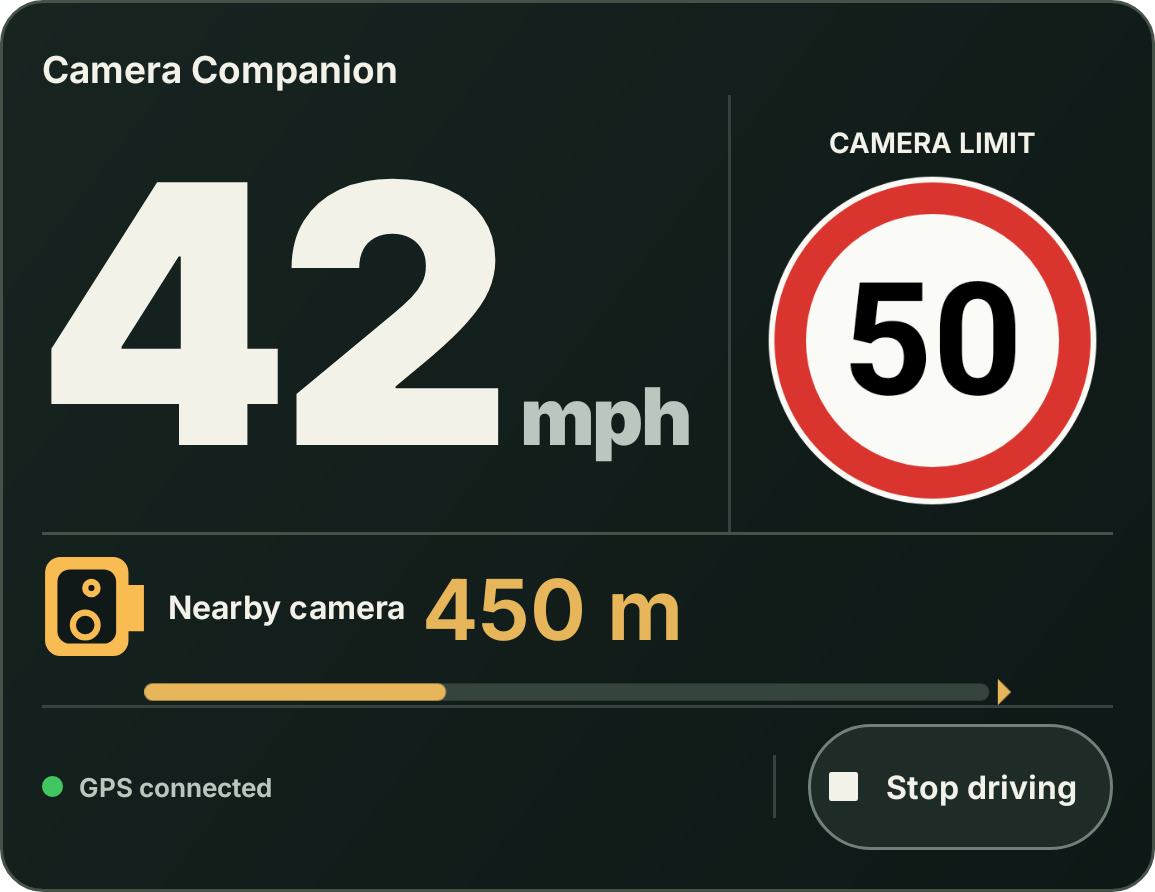
Designed around a readable driving display. No full-screen advert before you can get going.
GPS speed, camera distance and the camera’s recorded limit. Spoken warnings give you a heads-up, with a choice of warning distances.
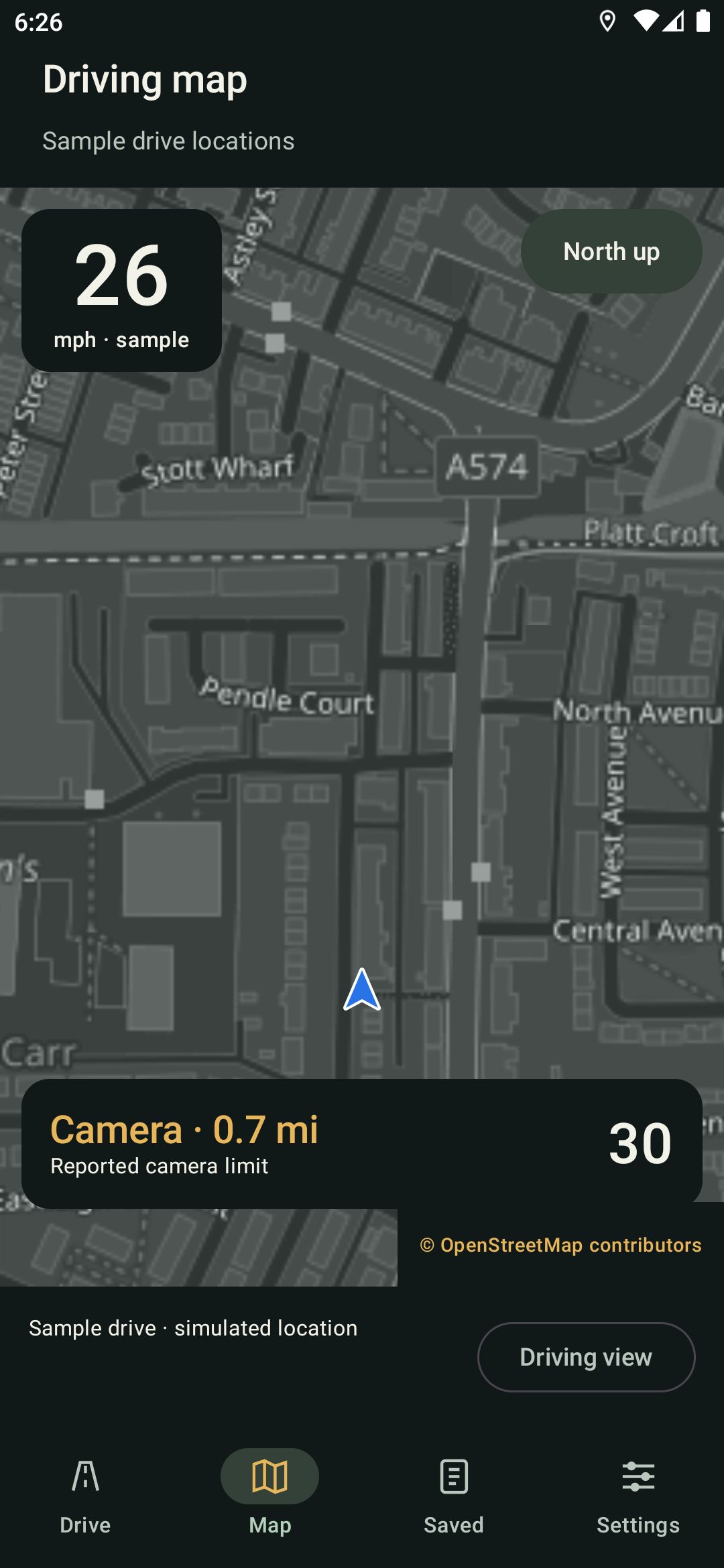
A heading-up driving map with automatic GPS, speed-sensitive zoom, pan and recentre controls. Open a selected camera in another maps app when needed.
Automatic daily checks, an optional check when opening the app and a manual update button. The last valid camera dataset stays available offline.
Home widgets, a floating panel, dark and light themes, keep-awake controls, saved pins and local trip totals. Try the sample drive before heading out.
Big yellow speed numerals. A segmented speed scale. Top speed, trip distance and time for your current drive.
The bar turns red at the nearby camera’s known limit. An unknown limit stays neutral. It’s an instrument display—not a challenge to go faster.
See widget controls ↗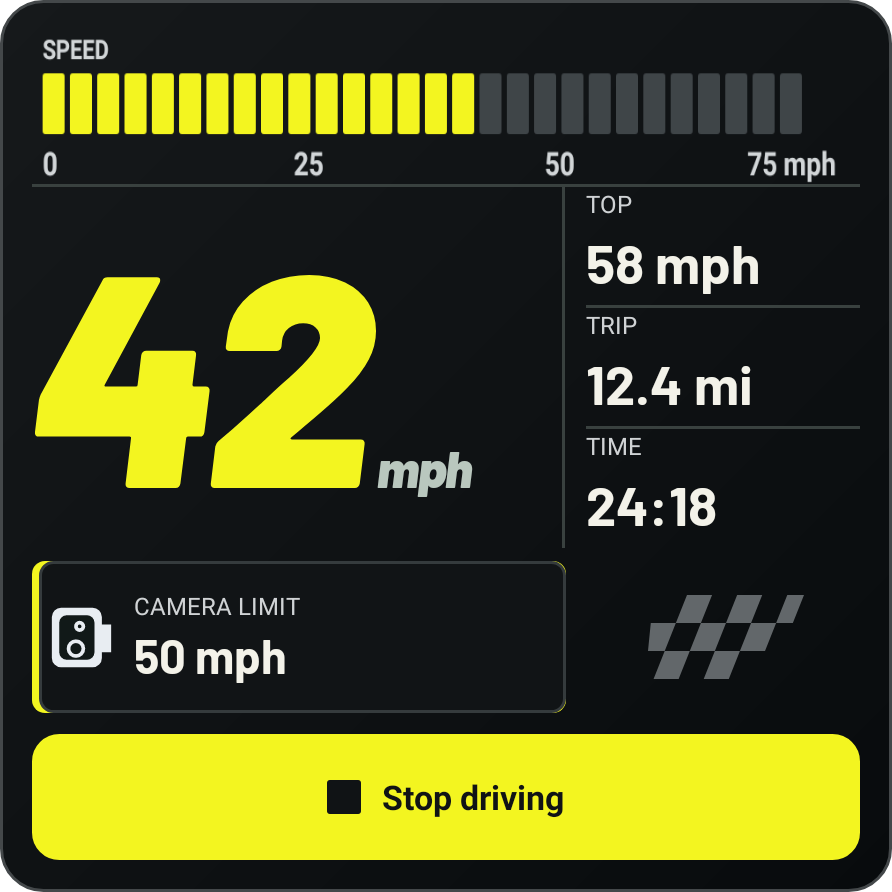
Real app screens and native widget renders. Tap an image to see it in full. Map imagery shows a simulated drive.
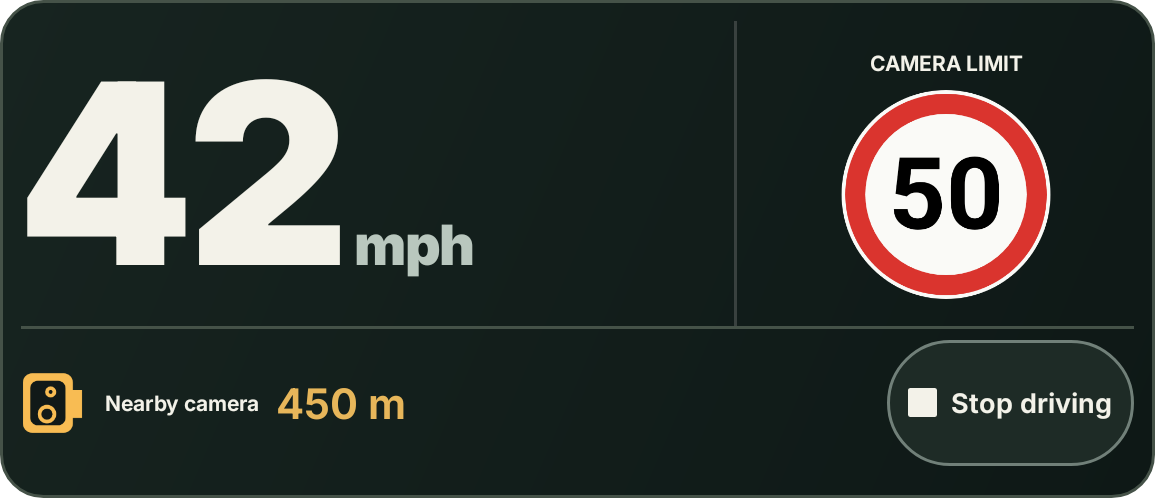
Resize both widgets to suit your launcher. Compact layouts keep the essentials visible. Idle hiding clears the panel, while Android keeps its allocated home-screen space.
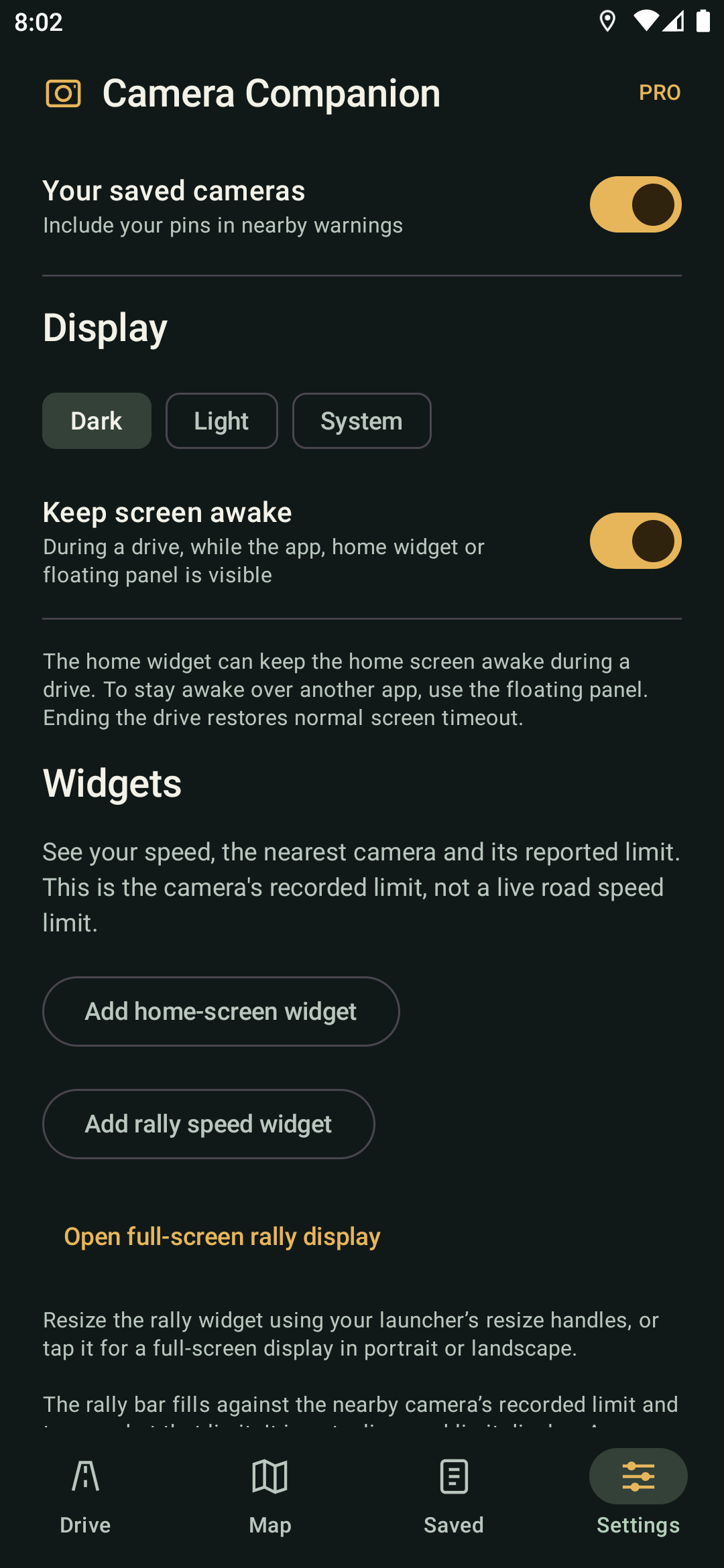
Every current settings area, explained. Park safely and stop the driving session before changing your preferences. Settings are locked during an active driving session.
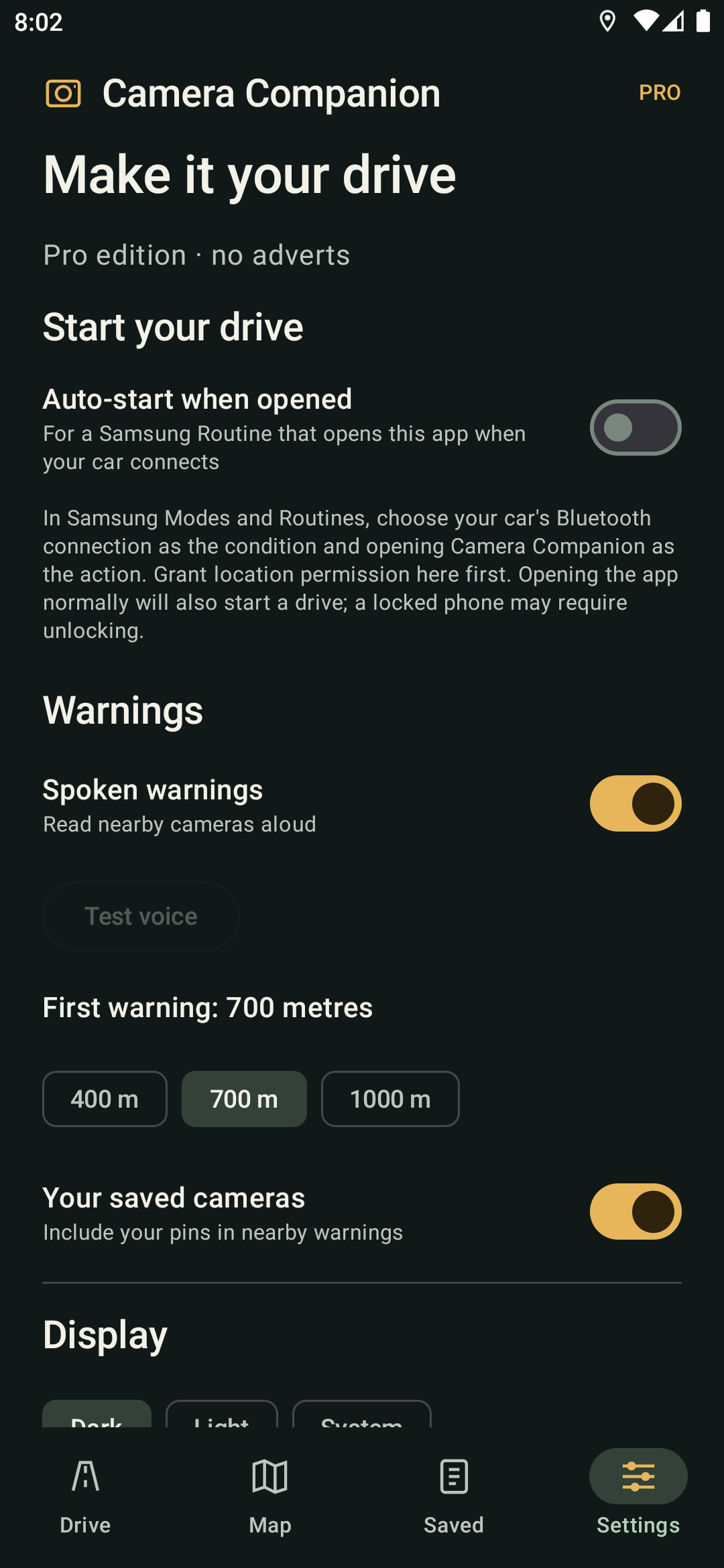
Start a driving session when Camera Companion opens. For car Bluetooth, set a Samsung Modes and Routines action to open the app when your car connects. This is a phone routine, not automatic Bluetooth detection inside the app. Normal app launches also start a drive when this option is on. Follow the Samsung routine setup guide →
Turn spoken camera warnings on or off, and use Test voice before you set off. Your phone needs a supported English text-to-speech voice.
Choose 400, 700 or 1,000 metres. Distance is measured to the camera record; neighbouring roads can still trigger a warning.
Include or exclude your own saved camera pins from nearby warnings. Pins are local to your phone, not shared community reports.
Pick a dark or light app appearance, or follow your phone’s theme. The home widgets use their own dark instrument designs.
Keep the display awake during a drive while the app, a home widget or the floating panel is visible. For another app to remain on screen, use the floating panel. Stopping the drive restores normal screen timeout.
Add either widget from Settings or your launcher’s widget picker. Resize with the launcher handles; tap Rally for its full-screen portrait or landscape display. Matching sizes are designed for compatible stacks; launcher support varies.
Hide the widget’s visible panel when the drive stops. Android still reserves its home-screen space; this setting does not remove the widget.
Show speed and nearby camera information over other apps during a drive. Grant Display over other apps permission. Drag by its heading, tap the heading to return, or close it for the rest of the drive. It stays hidden on the lock screen.
Daily background checks keep the camera feed up to date when Android allows. Update cameras when opened adds a launch-time check; Check for camera updates runs a manual check. Android may defer checks for battery or connectivity, and active drives postpone installation.
Import a compatible camera-data file. The app validates the data and retains a working dataset if an import fails. Cached camera records remain available offline; downloading new map tiles needs a connection.
Open Android’s app settings to review precise location, notifications and optional overlay access. Driving position is processed on the phone. Map tile requests reveal the viewed map area and your IP address to the map provider. Journey history stores totals, not route traces.
We’re adding features and refining the app with tester feedback. A Google Play launch is planned soon, subject to testing and store approval. There isn’t a confirmed release date yet.
Planned features are not available in the current test build. Priorities may change with feedback.
The testing edition is supplied as an APK outside Google Play. Request your copy from [email protected]. Android 8.0 or later is required; device compatibility is still being tested.
Email us with your phone model and Android version. We’ll provide the current test build and any relevant instructions. There is no public APK download on this website.
Download the supplied file from email or WhatsApp, then tap it. If Android blocks that source, tap Settings and enable Allow from this source for the app opening the file—such as WhatsApp, your browser or My Files. Return to the installer.
If an App scan recommended prompt appears and offers the option, tap More info (sometimes More details), then Install without scanning. You can choose to scan the app instead. Menu wording and availability vary by Android version.
Use this only for the test APK supplied by ViralMESH. This optional scan prompt is different from a harmful-app warning. If Android identifies the file as harmful, stop and contact us rather than ignoring that warning. You do not need to switch off Play Protect globally.
Tap Install, then Open. Allow precise location for speed and camera warnings, and notifications where requested. Display over other apps is optional and only needed for the floating panel. Try a sample drive while parked. Park safely and stop the driving session before adjusting any settings.
Once installed, turn off Allow from this source again in Android’s Install unknown apps settings. Future test APK updates may require the same steps. Camera-data updates and app-version updates are separate.
On supported Galaxy phones, Auto Blocker can prevent installs from outside approved app stores. For a test APK you trust, Samsung describes temporarily disabling it under Settings → Security and privacy → Auto Blocker, installing, then re-enabling it. If the phone is managed by your employer or the option is unavailable, contact the administrator or ask us for help.
Samsung’s Auto Blocker guidance ↗General installation steps: Google’s guide to apps from other sources. Your phone may show different wording. Guide checked 29 October 2026.
Set up a Samsung routine to open Camera Companion when your phone connects to your car’s Bluetooth, then let the app start the driving session. Complete setup while safely parked.
On your phone, open Settings → Modes and Routines → Routines, then tap + to add a routine.
Under If, choose Bluetooth device, select your paired car and choose Connected. Pair your phone with your car first if it is not listed.
Under Then, choose Apps → Open an app or do an app action and select Camera Companion. Save the routine with a name such as “Camera alerts in my car”. Menu wording may vary with your One UI version.
Open Camera Companion, stop any active driving session and go to Settings. Enable Auto-start when opened. The routine opens the app; this setting starts camera monitoring. It also starts a drive whenever you open the app normally.
While parked, disconnect and reconnect your car’s Bluetooth. Check that Camera Companion opens, the driving session starts and GPS obtains your position. Try this with your usual phone lock state too. Keep Bluetooth and Location on, allow precise location and check that battery restrictions are not preventing the app from running.
This helps you start camera alerts on each journey, but always check that the drive is active before moving off. Phone permissions, battery controls and Bluetooth connections can affect automatic starting. Camera coverage may be incomplete. This routine starts the app; disconnecting Bluetooth does not automatically stop the drive. Use Stop driving when safely parked at the end of your journey.
Development release notes. Current test version: 0.8.0. Camera-feed refreshes are separate from app releases.
No adverts. The current Pro testing build is ad-free.
Small banners in Settings while parked. No full-screen startup adverts. Pricing and purchase options will be confirmed before release.
Get a test copy, suggest a feature or tell us what needs work.
Email [email protected] ↗Coming soon to Google Play.
More features will be added as development continues.